
Volume 1, Issue 1 – Text Editor Options
Welcome to the first issue of Notenik News, the new Notenik email newsletter!
I’ll try to send these out no more than once a week, and no less than once a month.
What I’ll try to do in these newsletters is explore some recently introduced/updated aspect of Notenik functionality in some depth.
Today I’ll talk about the various ways in which a text editor can be used as a companion to Notenik.
First Principles
Modern app development has evolved into the practice of providing a user with a walled garden completely owned by a single app. The data for such apps is typically stored in some opaque and proprietary format, implemented either as a document or database format. Such an arrangement creates a very strict division of interests between the user and the developer.
Apps such as this can be useful, and entertaining, and aesthetically pleasing but, in the end, they always end up feeling like a bit of a prison to me.
With Notenik I wanted to do something different. I wanted the user to be able to view and edit and preserve their data without the limitations of my app’s particular UI and functionality.
And so I decided to store all of Notenik’s data in folders full of text files that could be easily inspected and modified using any text editor.
And, over time, Notenik even acquired functionality specifically designed to facilitate such text editing.
The Text Edit Commands
If you look towards the bottom of the Note menu, you'll find a command called Text Edit Note.
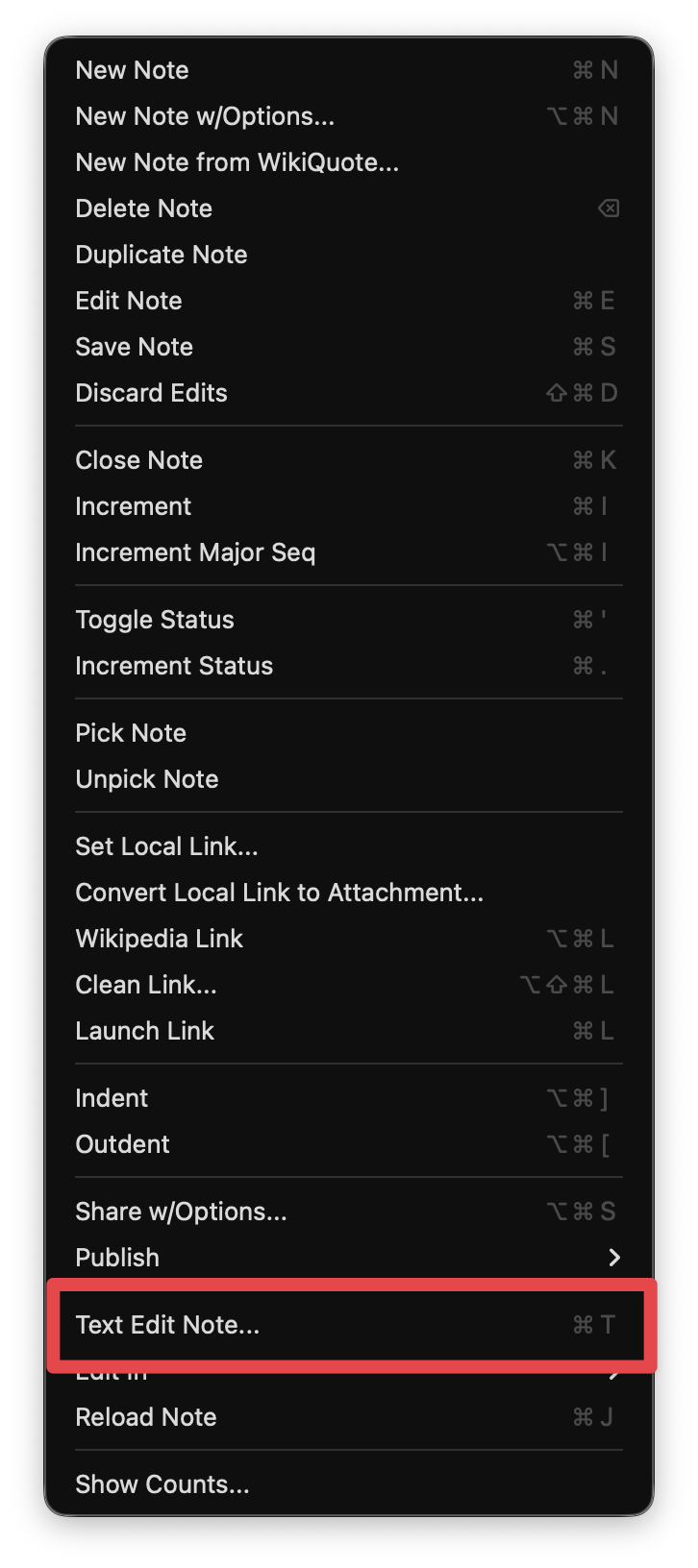
Similarly, beneath the Collection menu (this time towards the top), you'll find a command called Text Edit Collection's Template file.
You'll note that both of these commands have keyboard shortcuts assigned.
| Keys | Command |
|---|---|
| ⌘T | Text Edit Note |
| ⌥⌘T | Text Edit Collection's Template File |
When one of these commands is invoked, Notenik passes a request to macOS to open the file in question using its assigned editing application.
The application to be invoked is typically chosen based on the default app assigned for all files with that particular file extension (.txt, .md, etc.).
File Extensions
Now one of the interesting/odd things about Notenik is that, going back to the First Principles stated above, Notenik does not typically use any special file extension for the files it manages.
Instead, it expects you to use one of the following extensions, identifying the file as a common text file or, for some, a Markdown file.
.txt.md.markdown.mdown.mdtext.mkdown.mktext
And you can choose your desired file extension as part of each Collection's settings, either when you first create a collection, or at some later time (in which case Notenik will conveniently change all the collection's files to use the newly selected extension).
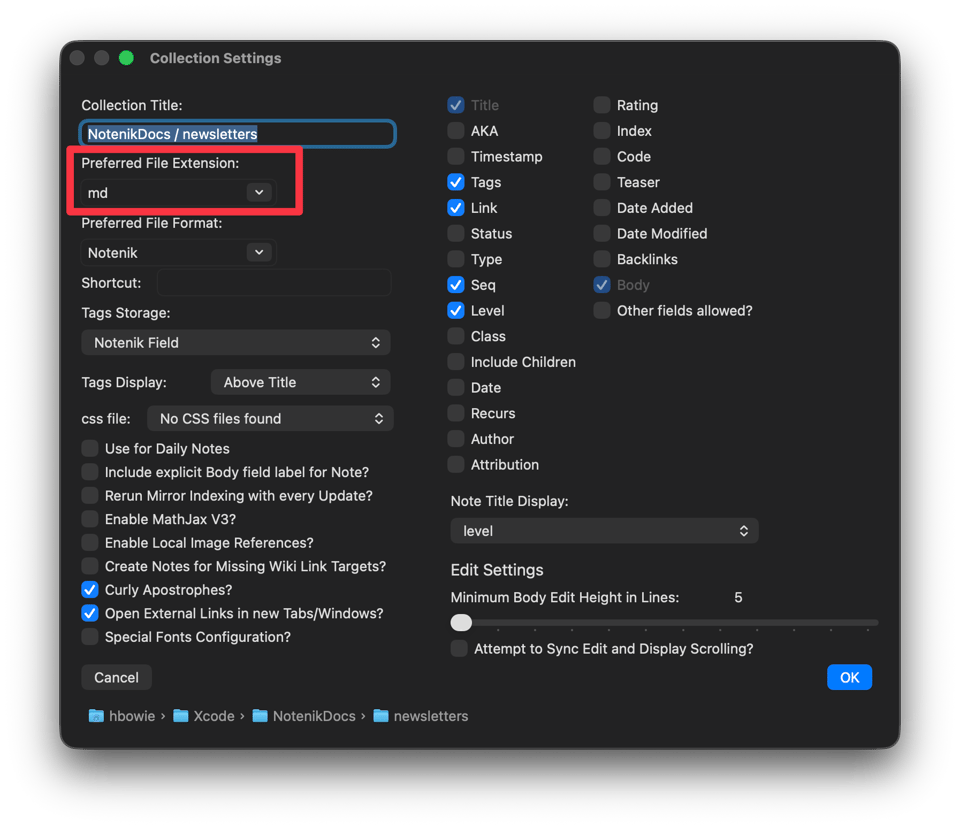
Note also that, if you like, macOS will allow you to easily change the app used to open files with a particular extension (see instructions here). So you could have a general text editor such as BBEdit open .txt files, but assign a more specific editor such as Typora to open .md files.
The choice is up to you.
Editing Apps
If you're like me, and you right-click on a Notenik file in the Finder, and select Open With, you'll see a long list of apps that might conceivably be used to open the file.
In fact, it's probably a lot longer than it needs to be, because you're probably not really ever going to open a Notenik file with the Numbers app, for example.
And so Notenik offers a different way.
At the bottom of the File menu, you'll find a command called Add Editing App(s).
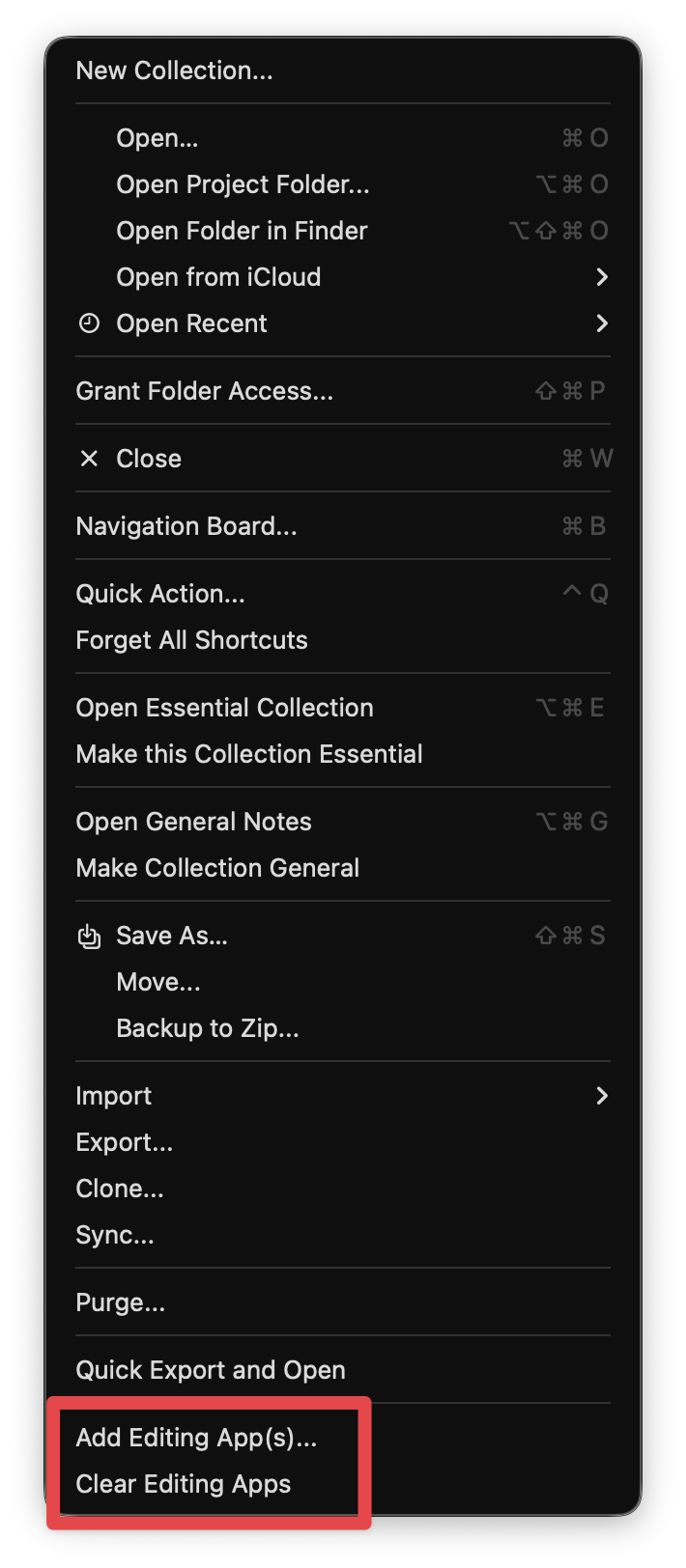
Once you select this command, you can pick as many different apps as you'd like (but no more!) to show up as options for editing one of your Notenik files.
Once you've completed this initialization step, then you can use the contextual menu for a note within Notenik (by control-clicking on the note's row on the List tab) to choose the menu item Edit in, which will then show you a submenu of all the editing apps you've identified. At which point you can pick any one of them to have that particular note opened in that particular text editor at that specific point in time.
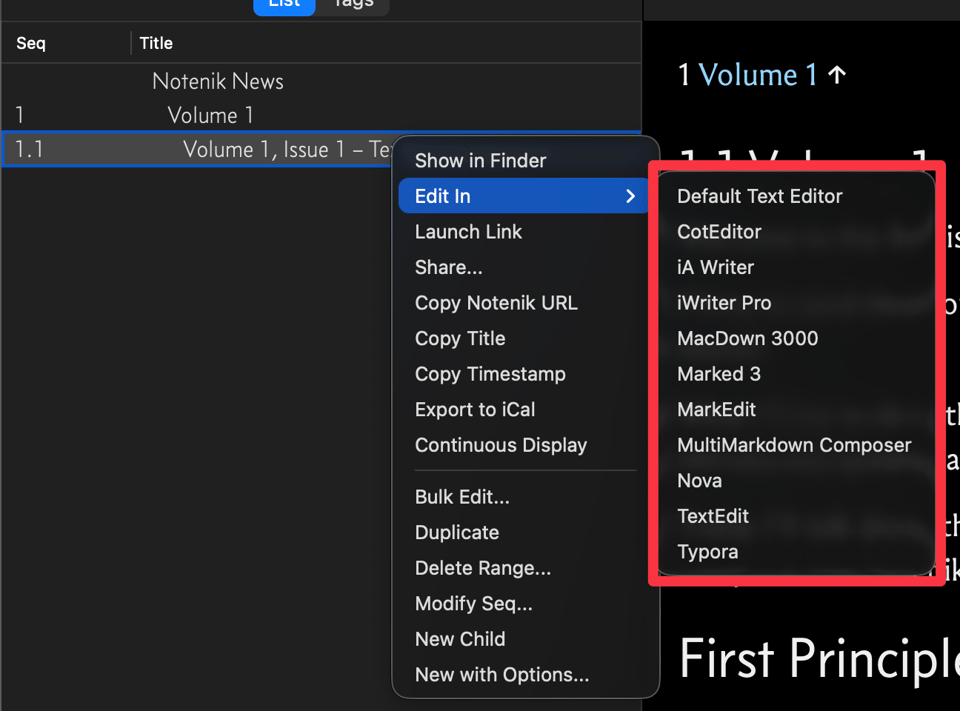
If you want to add another editing app later, you can repeat the same process to add the new app.
If you want to remove an app, on the other hand, you'll have to use the Clear Editing Apps command to clear out the lot, and then start over identifying the ones you want on the list.
This functionality was first implemented in Version 18.9.0, released in April of 2026.
Reloading Within Notenik
An important thing to note is that, for much of Notenik's history, if you edited a note or a template file outside of Notenik, then Notenik would only reload the affected note (or collection) once you returned to Notenik and triggered that reload manually. If you failed to perform this manual reload, then there would be a good chance that your external edits would be lost.
In other words, Notenik does not now (and never has) watched a note's disk file to check for outside updates.
However...
Starting with Version 19.3.0, Notenik now offers you three possibilities, found in the Notenik app settings, for dealing with a return to Notenik after invoking an external text editor.
- Manual Reloads Only – This was the only option available historically.
- Prompt to Reload – Notenik will prompt you to see if you'd like Notenik to reload the file from disk. This is the new default.
- Reload w/o Prompt – Notenik will silently perform the reload upon your return to Notenik.

Based on feedback in the Notenik Discourse forum, this seems to be a popular enhancement.
Wrapping Up
Well, that's it for our first issue of Notenik News. Hopefully this survey of various text-editing commands has been useful, and you've learned a thing or two.
If you have feedback, or suggestions for topics to be covered in future issues, please post them to our Discourse Forum.
Thanks for reading!
Reference Links
- Mac App Store – Notenik download link
- Notenik.app – Notenik website
- Notenik News Archives – Newsletter archives
